Check for a leftover proxy, not a broken network in general
If ordinary websites work while Clash Verge Rev is running, stop working after it exits and recover when it starts again, check Windows proxy settings. The official FAQ describes one possible cause: after an abnormal exit or power failure, Windows may still send browser requests to a local proxy that is no longer listening.
This guide covers a leftover manual system proxy, using Clash Verge Rev v2.5.2 on Windows 11, x64 or ARM64, with a note for the older Windows 10 layout. Rev remains maintained and is not Clash for Windows. An existing installation is assumed; no patch, new installer or core replacement is needed. These steps do not diagnose TUN routing or other operating systems.
Compare the same website that normally works without a proxy. A service that already required a proxy is not a useful stand-alone test: losing access to it after turning the proxy off does not prove that Windows networking is damaged.
Record the settings and identify who controls them
Closing the window is not necessarily exiting the program. Check the notification area and Task Manager, and see whether another proxy client is running. Repeatedly toggling Windows settings while another application controls them makes the result harder to interpret.
If Rev still opens and you own the entire proxy setup, turn off System Proxy in the client before exiting normally, then check Windows. In v2.5.2 that master switch also clears PAC auto-proxy settings. Do not use it indiscriminately on a computer with an organization-managed setup script.
Leave an organization's proxy alone: record the address, port, switches and script state first. Continue only when the manual proxy belongs to your local client. An unfamiliar server or a management-policy notice is a reason to ask the administrator.
127.0.0.1 and localhost identify the local computer, not Rev exclusively. Compare the values with your own configuration; do not replace the port with a number from a tutorial.
Disable the stale manual proxy in Windows
- Open Windows Settings → Network & internet → Proxy. Locate Manual proxy setup; leave automatic detection and setup scripts unchanged.
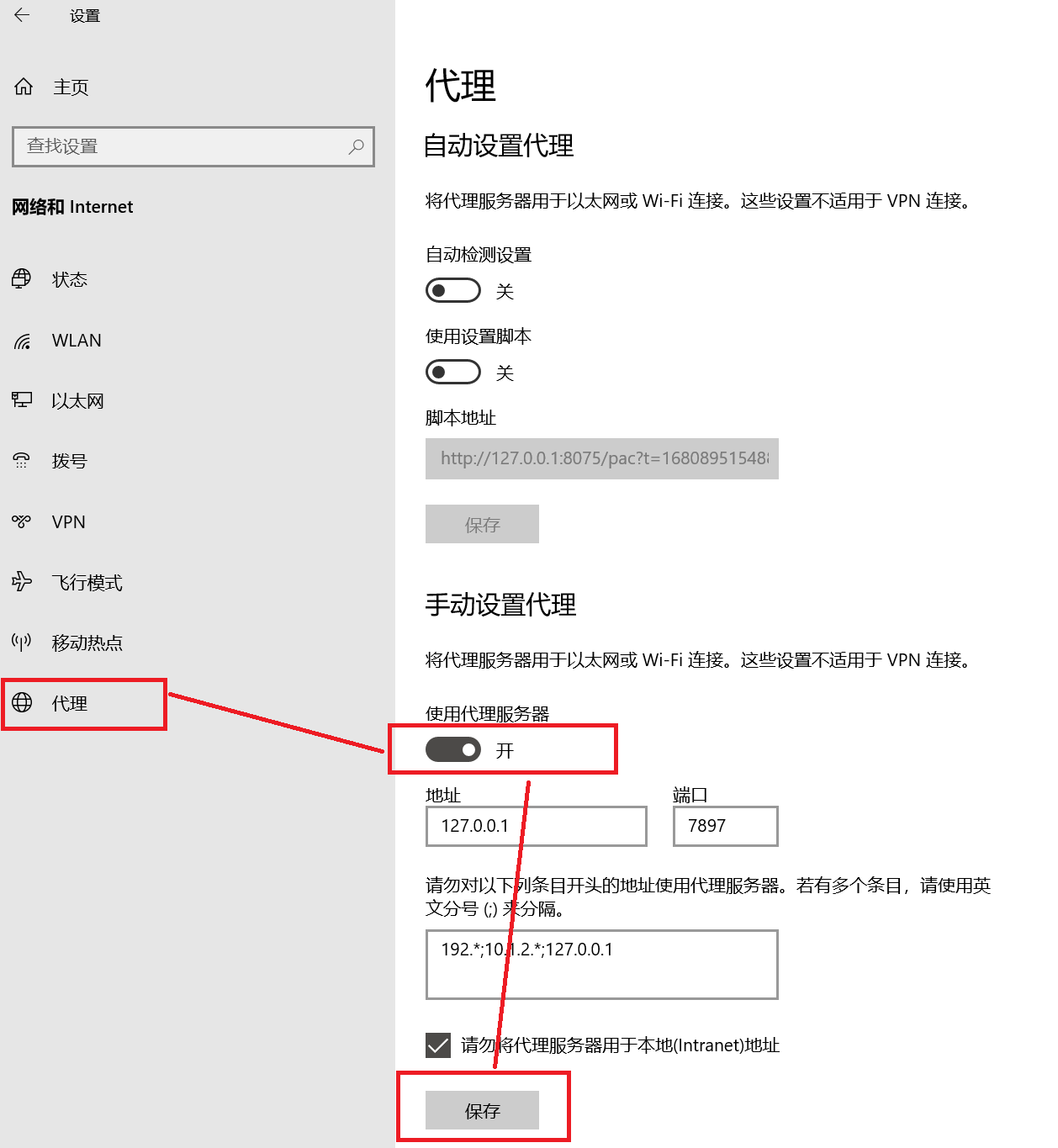
- On Windows 11, open the edit control beside Use a proxy server. Older Windows 10 builds display the switch directly. Record the server, port and exceptions before making a change.
- Once you have identified the stopped local client's proxy, turn Use a proxy server off and select Save in that panel. Do not alter unrelated settings.
- Leave the page and return to check that it remains off. Stop if policy blocks the change or the switch immediately comes back on.
The official FAQ image below is an older Windows 10 screenshot in Chinese, not a Windows 11 or v2.5.2 application screenshot. It helps locate the manual section. The pictured switch is still on: the action is to turn it off and save, not to reproduce the displayed port.
Verify with a fresh browser request
Reopen the affected browser and load the website that normally works directly. Check the proxy switch again. A cached page alone is not proof of recovery, and restarting the entire PC is not the first requirement.
| Observation | Next action |
|---|---|
| Ordinary direct access returns and the switch stays off | This is consistent with a stale local manual proxy; stop changing settings |
| Only services requiring a proxy remain unavailable | Direct access does not replace that proxy service |
| The switch turns back on | Identify another client, proxy guard or management policy |
| It was already off, or access still fails | Preserve the evidence and investigate a different network or application cause |
If only one browser is affected, distinguish its own extensions and proxy settings from Windows settings. This switch is not the only proxy source for every application, and changing it does not remove independently configured terminal proxy variables.
Enable proxying again only when the client is ready
When you next need the proxy, start your trusted Rev installation, confirm the existing profile works and enable System Proxy through the client. Let it supply its current listening address. Do not first re-enable an old Windows entry while nothing is listening.
If this was only a comparison test and the original setting serves another known purpose, restore the values you recorded for the settings you own. Ask the administrator to handle managed configurations. Disabling a manual proxy neither deletes a profile nor cancels a subscription.
TUN, VPN and PAC problems need their own evidence, particularly when routes or DNS remain affected after exit. Do not delete registry entries or adapters, disable the firewall or perform a full network reset to test this single manual-proxy condition. Changing one identified setting keeps both the result and the way back understandable.
Official sources and version scope
- Clash Verge Rev: a system proxy left enabled after exit
- Microsoft: manual proxies, detection and setup scripts
- v2.5.2 source: proxy switches and exit cleanup
- Clash Verge Rev v2.5.2 official release
Version numbers, filenames, and interface labels can change. Confirm them in the linked project documentation before making changes.