Define the boundary: this is a community-modified build, not an official language switch
Older Clash for Windows releases, commonly called CFW, do not provide a setting that turns the whole interface into Chinese. The Clash-for-Windows_Chinese community repository distributes rebuilt Chinese editions and explicitly labels them “Unofficial.” Its own description says the original application is modified. It should therefore be described as a community build, not an official CFW language pack, and a Chinese screen is not proof that a binary is trustworthy.
This guide follows the two complete artifacts documented by the project’s 0.20.39.3 Release: a Chinese installer and a Windows archive. The repository’s old app.asar replacement lines are struck through, and the app.7z extraction approach belongs to the deprecated historical workflow. That boundary is worth knowing, but manual resource replacement is neither taught nor recommended here. Combining those old instructions with a complete rebuilt package creates an installation whose final contents are difficult to trace.
Protect subscription data first: profiles, logs, and subscription URLs can contain tokens, server addresses, and credentials. Store backups in a controlled location. Do not upload the entire CFW data directory to a public drive or expose a complete subscription URL in a support screenshot.
If the English interface is workable, keeping an unmodified build usually has the smallest maintenance surface. When Chinese labels are genuinely needed, evaluate this download as third-party modified software: enter Releases from the same repository, match the tag and asset, preserve the currently working application and personal data, and make the installation reversible before launching it.
Choose the complete installer or archive from the 0.20.39.3 Release
Open About or read the upper-right label in the currently installed CFW and record the complete base version. The community 0.20.39.3 Release describes itself as based on Clash for Windows 0.20.39. The final .3 belongs to the community optimized-build revision; it is not another official upstream CFW patch level.
The Release documents two complete Windows artifacts. Clash.for.Windows.Setup.0.20.39_Opt-3.exe is an installer to use through the ordinary install or update flow. Clash.for.Windows-0.20.39-Opt.3-win.7z is a complete archive; extract it and start Clash for Windows.exe inside. These are alternative package forms. Select one. Neither requires a second interface-resource download or a manual file overlay.
| Check | Installer | Archive |
|---|---|---|
| Release tag | 0.20.39.3, documented as based on CFW 0.20.39 | |
| Original asset | Setup.0.20.39_Opt-3.exe | 0.20.39-Opt.3-win.7z |
| Operation | normal install or update wizard | extract to a separate folder and run |
| Useful when | system integration and shortcuts are wanted | an isolated first test is preferred |
| Avoid | installing both, layering old resource methods, or using an untraceable repost | |
The GitHub repository, exact tag, original asset name, and Release instructions should form one source chain. A search result, shortened URL, file-host copy, or renamed download cannot replace that chain. Stop when any version or filename conflicts rather than trusting claims such as “universal for every CFW version.”
Back up personal configuration and the currently working application
A complete package removes the need to edit application resources by hand, but it does not eliminate migration risk. Record the current CFW version, installation form, active Profiles, proxy mode, frequently selected policy groups, and important custom settings. Prefer an export available in the client. If you must copy its application-data directory, exit from the tray and use Task Manager to confirm that no related process is still writing before making the copy.
Prepare application recovery and user-data recovery separately. A saved installer or untouched portable directory can restore the program. A configuration export or full application-data snapshot can restore subscriptions, rules, and working state. The data copy may contain tokens, UUIDs, passwords, or server details, so keep it on encrypted or otherwise controlled storage rather than beside an installer you plan to share.
- Record the exact CFW version and the real path of the application being used.
- Save a sanitized baseline of profile names, mode, selected groups, and critical settings.
- Exit through the tray and confirm that all CFW processes have stopped.
- Export configuration or copy the actual data directory; confirm that files exist and are not empty.
- Retain the current working installer or portable directory with a version and backup date.
- Place the new installer or archive in a separate test location that cannot overwrite the backup.
Test the backup now: open its destination, inspect a non-sensitive configuration file, and make sure the entries are real local files rather than cloud placeholders. A Copy completed message that was never checked is not a demonstrated recovery path.
If the immediate goal is to inspect the interface, the archive is easier to test in a new directory. If an installation wizard and an update of the installed program are desired, choose the installer. In either case, retain the old program and data through the first launch and functional checks.
Install or extract the selected artifact without layering an old method
For the installer, verify once more that the file came from the 0.20.39.3 Release, exit every CFW process, and start Clash.for.Windows.Setup.0.20.39_Opt-3.exe. Follow the normal install or update wizard and do not copy any separate resource file afterward. The Release also says that a build installed this way takes over the built-in update behavior. Before accepting a later in-app update, inspect its target version and source; do not mistake that modified channel for an official upstream update.
For the archive, extract Clash.for.Windows-0.20.39-Opt.3-win.7z into a new empty directory. The repository specifically warns against simply extracting into the current folder, which would scatter application files there. Preserve the extracted directory structure and start Clash for Windows.exe within it. Treat this as an isolated test copy first instead of overwriting the working portable folder.
- Keep only the one complete artifact selected for this attempt and record its Release URL.
- Exit CFW and its tray process, then temporarily leave System Proxy and TUN off.
- Use the installer wizard, or extract the archive into a new empty directory.
- On first launch, inspect version and interface before refreshing subscriptions or adding rules.
- If old data is needed, restore one complete verified export through the appropriate import route.
- If launch fails, stop and return to the old application and backup instead of adding another package.
An administrator prompt should be limited to an understood installer operation. Confirm the recorded installer and destination before approving it. Do not disable security software to work around an unexplained warning, and do not make CFW run permanently as administrator. If the archive is blocked, recheck its source and content before considering any narrowly scoped exception.
If the installed edition and an archive test copy coexist temporarily, never run them together or let both write the same data. End one instance, note the executable path, and then start the other. Otherwise an old window can easily be mistaken for the package under test.
Verify the Chinese interface, core, and proxy path while rollback remains available
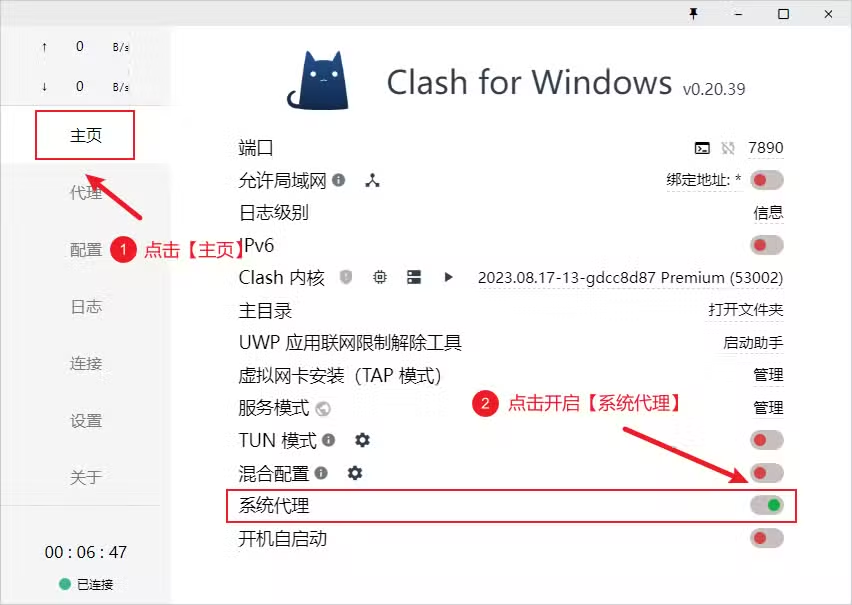
After launch, confirm in About or the upper-right label that the base version is 0.20.39. Inspect major pages such as Home, Proxies, Profiles, and Settings for consistent Chinese labels. A few protocol names or technical terms remaining in English are not necessarily a failure. Large blank areas, unresponsive controls, an unexpected version, or renderer errors mean that the installation is not yet usable. Use the screenshot below to locate the main navigation and System Proxy control.
Perform a minimal functional check with the existing configuration. The core should start and remain running, the Profiles list should be intact, policy groups should expand, logs should open, and System Proxy should turn on and off normally. Localization should change interface text, not subscription content, node credentials, or routing rules. If networking differs, keep the profile and node fixed and compare with the old version before changing DNS, TUN, or proxy mode.
For a failed installed edition, exit every process, restore the configuration backup, and if necessary reinstall with the previously saved working installer. For a failed archive edition, stop that instance and return to the untouched portable directory; do not copy scattered files from the test folder into it. When the old program and old data work together, the fault can be bounded to the new package or migration.
Complete at least one close-and-reopen cycle, one configuration load, and one real connection before making the new build the daily entry point. Retain the old program and backup for an observation period. A useful community report includes the base version, exact asset name, installation form, and sanitized log, never the subscription file.
Official sources and version scope
- github.com/Z-Siqi/Clash-for-Windows_Chinese
- github.com/Z-Siqi/Clash-for-Windows_Chinese/releases/tag/0.20.39.3
Version numbers, filenames, and interface labels can change. Confirm them in the linked project documentation before making changes.